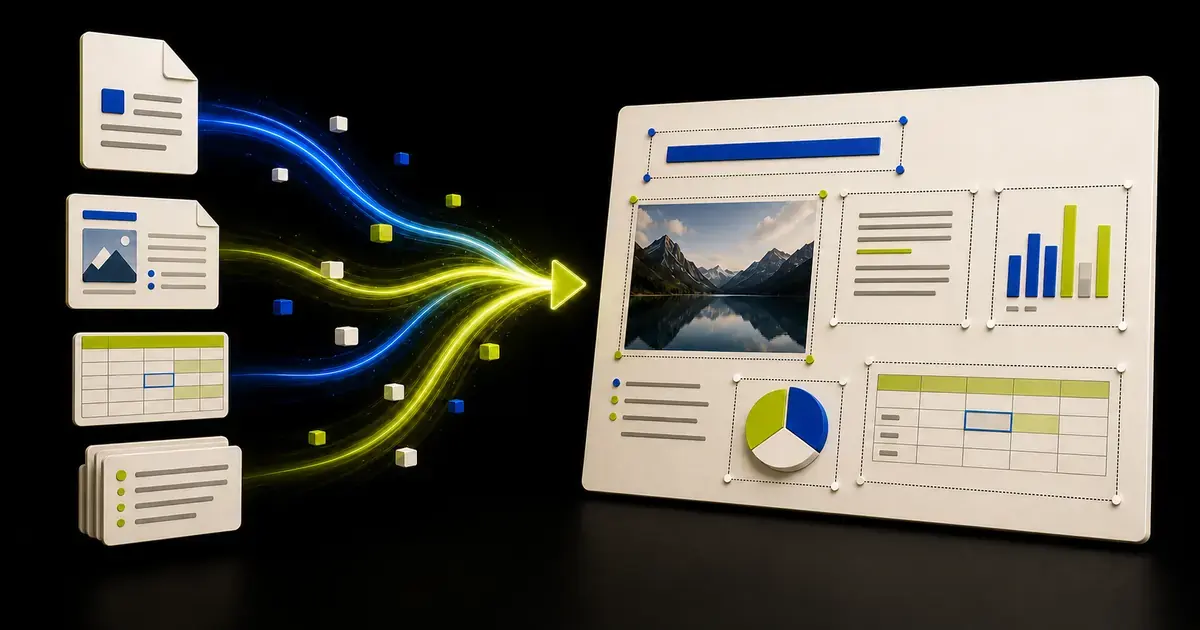
You can create a useful presentation with AI from source material, but a reliable workflow is not "upload everything and accept the first deck." Start by defining the audience and decision, prepare a small source pack, review the proposed outline, generate a draft, verify every factual slide, and export an editable PowerPoint for the final delivery check.
This process works because it gives the AI a clear job and a bounded source of truth. The source files provide evidence. The brief defines the purpose. The outline controls the story. Human review decides what is accurate and ready to present.
Why source material produces a better starting point
A prompt such as "make a presentation about our business" leaves most important decisions unspecified. The AI must guess the audience, the evidence, the level of detail, the structure, and the desired action.
Source material reduces that ambiguity. Depending on the presentation, the useful inputs may include:
- a PDF report;
- a Word brief or proposal;
- an XLSX or CSV file;
- meeting notes or a transcript;
- product screenshots and approved images;
- an earlier PowerPoint;
- brand rules, terminology, and required disclaimers.
More material is not automatically better. A focused source pack is easier to reconcile than a folder of duplicates, stale versions, and unrelated background documents.
If you already have a deck with useful slides, you may need an editor rather than a blank-slate generator. Use the comparison between an AI PowerPoint editor and an AI presentation generator to choose the right starting workflow.
Define the presentation job before uploading files
Write a short creation brief before asking AI for an outline. It should answer six questions:
| Brief field | Question | Example |
|---|---|---|
| Audience | Who will review or hear this? | Product and finance leaders |
| Decision | What should happen after the presentation? | Approve the next-quarter roadmap |
| Setting | How will it be consumed? | Fifteen-minute live review |
| Source cutoff | Which version and date are authoritative? | Metrics through June 30 |
| Required content | What must appear? | Outcomes, risks, resources, next steps |
| Constraints | What must not be invented or changed? | Financial values and legal wording |
This brief prevents a common failure: a polished deck that answers the wrong question.
For example, a board update, customer proposal, training deck, and conference talk can all use the same underlying report. They should not use the same narrative. Each audience needs different context, evidence, and emphasis.
Prepare a source pack the AI can reason over
Choose one authoritative version of each fact
If revenue appears in three spreadsheets with different reporting dates, do not make the AI choose. Mark the controlling source and remove or label the older files.
Create a simple source register:
| Source | Controls | Reporting date | Owner |
|---|---|---|---|
metrics-final.xlsx | Revenue and usage | June 30 | Finance |
roadmap-approved.docx | Product milestones | July 8 | Product |
research-summary.pdf | Market context | July 10 | Strategy |
The register does not need to become a slide. It gives the reviewer a way to trace claims back to evidence.
Remove duplicates and stale drafts
Files named final, final-2, and final-revised are a warning. Archive the unused versions outside the upload set. If an older source still matters, label its purpose clearly.
Separate facts from instructions
Source files should supply facts. The creation brief should supply instructions. Mixing the two makes conflicts harder to detect.
For instance, a research report may describe several possible strategies. Your brief can say which decision the presentation must support without rewriting the report itself.
Protect sensitive information
Review the product's published privacy terms and your organization's rules before uploading confidential material. Remove personal data, unreleased financial information, customer identifiers, or restricted content when the workflow is not approved for them.
Build and review the outline before generating slides
An outline is the cheapest place to fix a presentation. Moving one line in an outline is easier than rebuilding five designed slides.
Ask the AI to return a slide plan with:
- slide number;
- proposed title;
- the job of the slide;
- the evidence it will use;
- the intended audience takeaway;
- any missing information or unresolved question.
Then read only the slide titles in sequence. They should form a coherent argument without the body copy.
A strong outline usually moves through a pattern such as:
- context;
- problem or opportunity;
- evidence;
- interpretation;
- recommendation or solution;
- trade-offs and risks;
- decision or next action.
That is not a universal template. A teaching presentation may move from concept to example to practice. A sales deck may move from buyer problem to desired outcome to evidence and next step. The sequence should match the job.
The full AI presentation outline guide explains how to test narrative flow before slide design.
Generate slides from approved takeaways
Once the outline is approved, turn each outline item into a constrained slide brief.
Use this structure:
Create slide
[number]for[audience]. Its job is[job]. The takeaway is[takeaway]. Use only[named source and section]. Preserve[facts, units, names, and qualifiers]. Prefer[chart, table, process, comparison, or image]when the source supports it. Flag missing evidence instead of inventing it.
This is more reviewable than asking for an entire deck in one open-ended prompt.
For every slide, distinguish four content types:
- Source fact: a value or statement directly supported by the material.
- Interpretation: what the presenter concludes from the facts.
- Recommendation: what the presenter thinks should happen.
- Unknown: a question the available material cannot answer.
AI should not silently turn an unknown into a fact or an interpretation into proof.
Match the visual form to the relationship
Good presentation design makes a relationship easier to understand. It does not decorate every statement.
Use:
- a bar chart for a meaningful category comparison;
- a line chart for change over time;
- a table for exact lookup or detailed comparison;
- a timeline for dated stages;
- a process for an actual ordered workflow;
- a hierarchy for levels of ownership or control;
- an image when visual evidence matters;
- concise text when no visual structure improves comprehension.
Do not draw arrows between ideas merely because a process diagram looks more impressive. An arrow implies direction, sequence, or causation. The source must support that relationship.
Review the draft in three passes
Pass 1: Narrative
Check whether the deck answers the audience's real questions. Remove duplicated slides, repair abrupt transitions, and confirm that the closing action follows from the evidence.
Pass 2: Facts
Reconcile every number, date, unit, name, quotation, and product claim with the controlling source. Verify chart labels and calculations independently. Check that actuals, targets, forecasts, and benchmarks are visibly different.
Pass 3: Presentation quality
Review text fit, hierarchy, alignment, image crops, contrast, reading order, and editability. Microsoft provides an Accessibility Checker for PowerPoint, but automated checks do not replace a human review of meaning and delivery.
Export and test the real artifact
If the final deliverable is PowerPoint, the browser preview is not the acceptance test. Export a new PPTX and open it in the version of PowerPoint used by the presenter.
Check that you can:
- edit the text you expect to edit;
- select and move supported objects;
- inspect charts and tables that must remain editable;
- read every slide at the actual display size;
- run the slide show without missing assets;
- save, close, and reopen the file;
- share a copy without exposing hidden information.
If you started with an existing deck, follow the more detailed PowerPoint AI editing and round-trip workflow.
Creating from source material in Yrkie
Yrkie supports two starting modes. Inventor starts with a prompt and source material. You can add supported documents, data, images, audio, or video, then review and refine the outline before slides are generated. Copyist starts with an existing PPTX so you can improve supported slide content without treating the old deck as disposable.
The resulting workspace supports editing of supported text, images, charts, tables, formulas, icons, and layout elements. You can present the deck in Yrkie or export it back to PPTX. Support varies by element, so review important files and do not assume that every PowerPoint feature will survive every workflow unchanged.
Create your presentation in Yrkie with a focused source pack and an approved outline.
Frequently asked questions
What files should I give an AI presentation generator?
Use the smallest set of authoritative files that contains the facts, examples, and visuals required for the presentation. Label versions and reporting dates. Avoid uploading duplicates and unrelated background material.
Should I generate slides before reviewing the outline?
For important presentations, review the outline first. It is easier to correct the argument, slide order, and missing evidence before layouts and visuals make the draft feel finished.
Can AI decide which facts are correct?
AI can compare sources and flag conflicts, but the source owner should decide which value is authoritative. Do not let the model silently resolve conflicting financial, legal, customer, or product information.
Can I create an editable PowerPoint from source files?
Some AI presentation products export PPTX, but editability varies by product and element. Test the exported file by reopening it and editing the objects you need.
Is more source material always better?
No. A focused, current source pack usually produces a more reviewable draft than a large collection of duplicate or contradictory files.