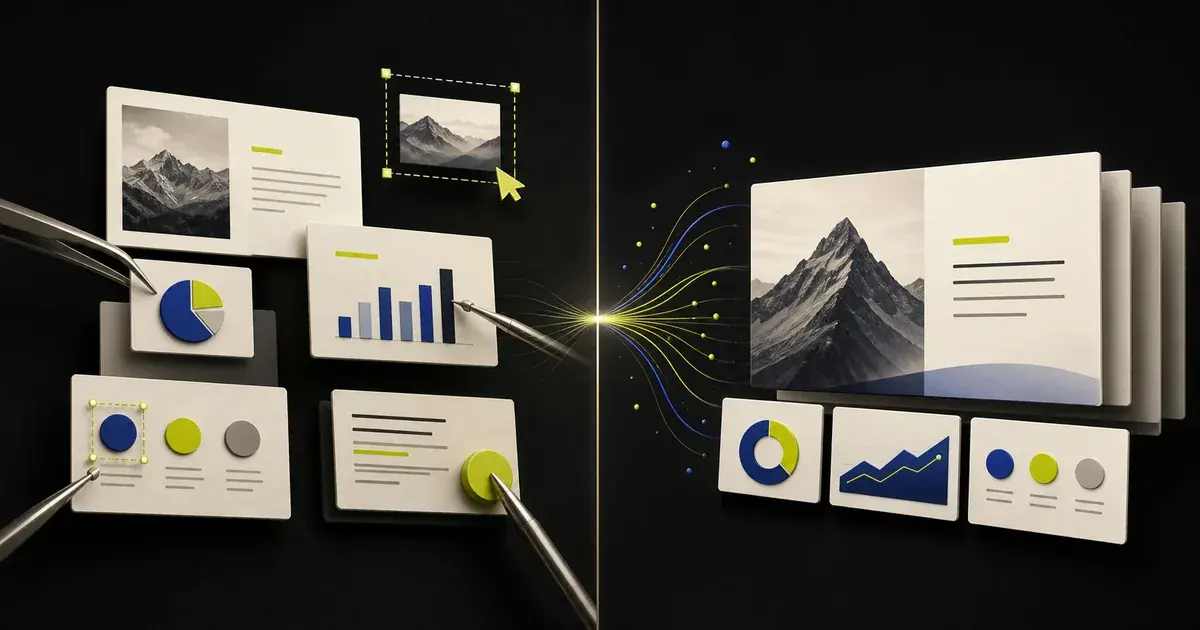
Use an AI presentation generator when you need a new deck from a topic, prompt, or set of source files. Use an AI PowerPoint editor when you already have a PPTX and want to improve it without rebuilding every slide. Choose a hybrid tool when your work moves between both situations and you want one workflow for creating, importing, refining, and exporting editable presentations.
The product category matters because the same prompt can produce very different artifacts. One workflow starts with your idea. The other starts with your existing presentation.
The difference at a glance
| Decision | AI presentation generator | AI PowerPoint editor |
|---|---|---|
| Starting point | Topic, prompt, outline, document, or other source material | Existing PPTX or a presentation already open in PowerPoint |
| Main job | Create a first draft | Revise, extend, or redesign current slides |
| What it may replace | Blank-page research, outlining, writing, and initial design | Manual rewriting, repetitive updates, layout changes, and selective slide work |
| Relationship to the old deck | May not need one; may use it only as source content or style inspiration | Treats the existing deck as the object being changed |
| User control | Usually begins with broad generation, followed by refinement | Usually begins with targeted changes to existing content |
| Typical output | Web presentation, PDF, PPTX, Google Slides, or product-specific format | Modified presentation in PowerPoint, a browser workspace, or an exported PPTX |
| Main risk | Generic structure, unsupported claims, or a difficult PowerPoint handoff | Import differences, unintended edits, or unsupported PowerPoint features |
Neither category is automatically better. The correct choice depends on what already exists, what must be preserved, and what the recipient needs at the end.
What an AI presentation generator does
An AI presentation generator turns an idea or source material into a new presentation draft. A common flow looks like this:
- Enter a topic, goal, and audience.
- Add notes, documents, data, or links as context.
- Review an outline or generated structure.
- Choose a theme or visual direction.
- Generate slides.
- Edit, present, share, or export the result.
This workflow is useful when the hardest part is getting from scattered information to a coherent first version.
Choose a generator when:
- you are starting from a blank page;
- your source material is not yet organized into slides;
- you need help choosing the story and section order;
- the current deck is too outdated to be a useful base;
- you want to explore several approaches before committing;
- your final format can be chosen after the first draft exists.
Watch for these generator trade-offs
The generated presentation may use a product-specific card or page model rather than standard PowerPoint objects. A PPTX export can still be available, but every visual may not remain independently editable or match the web preview.
If you supply an old PPTX, determine whether the tool is preserving it or merely reading it. For example, Gamma’s official import documentation says its plain presentation import brings text into cards, while the original styles and layouts are not imported. Its AI import can then transform and restyle that content.
That behavior can be appropriate when you want a replacement. It is less appropriate when the existing slide structure is part of the asset you must keep.
What an AI PowerPoint editor does
An AI PowerPoint editor begins with a presentation that already exists. Its job is to help you make changes while preserving useful work and maintaining a path back to the delivery format.
Depending on the product, the editor may run:
- inside PowerPoint as an add-in or built-in assistant;
- in a browser after importing the PPTX;
- in a presentation application that creates and edits native slide objects.
Typical editing tasks include:
- rewriting a title or selected text;
- shortening a dense slide;
- adding a missing slide;
- reorganizing a section;
- changing an image or visual treatment;
- updating a chart or table;
- adapting a sales deck for a new customer;
- refreshing an old deck without losing its useful content.
Choose an editor when:
- the existing deck contains approved or valuable work;
- the template, layout, or slide order matters;
- you need to update only part of the presentation;
- reviewers expect the same deck to continue through another revision;
- the final artifact must be a usable PowerPoint;
- you want to change individual elements instead of regenerating the whole presentation.
Watch for these editor trade-offs
Import and export support is rarely universal. Fonts, masters, animations, media, charts, grouped objects, and other advanced PowerPoint features may behave differently across tools.
Before relying on an editor, ask what AI can actually edit in an existing PowerPoint. Then test the specific objects your presentation uses.
Some products combine both workflows
The categories are useful for deciding what job you need, but products do not always fit into only one box.
Microsoft’s Copilot documentation describes creating, editing, and understanding presentations inside PowerPoint, including adding slides, updating content, and reorganizing sections. Plus AI presents a similar create-and-refine range inside PowerPoint and Google Slides, including prompt-based creation, file upload, and slide remixing.
A hybrid product can reduce switching when you create a deck one day and revise an existing deck the next. The important question becomes whether both paths are first-class workflows or whether one is a limited import attached to the other.
Choose based on the work you already have
Start with the asset, not the feature list.
You have a topic and research, but no deck
Use a generator. Ask it to build an outline before it creates slides, especially when the presentation must persuade rather than merely summarize.
Review:
- the audience and decision;
- the argument and section order;
- claims and evidence;
- what belongs on slides versus in speaker preparation;
- whether the output remains editable in your required format.
You have an old deck with useful content
Use an editor. Keep the source file untouched and identify which slides or elements need attention.
Good first tasks include:
- replace an outdated opening;
- rewrite slide titles as conclusions;
- remove repeated information;
- update data and dates;
- modernize visual hierarchy;
- add a new section without remaking the rest.
Follow a controlled workflow for editing PowerPoint with AI, beginning with one representative change and ending with a reopened PPTX.
You have source files and a partial deck
Use a hybrid workflow. Treat the existing deck as the structural base and use the supporting documents to fill gaps or update specific sections.
This is common in business presentations. A founder may have an old pitch deck plus new traction data. A sales professional may have a standard deck plus customer research. A product manager may have last quarter’s review plus current metrics and roadmap notes.
Do not ask the AI to merge everything without boundaries. State which deck is authoritative, which source updates which section, and which facts must remain unchanged.
You only want a new visual direction
First decide whether you need an editable redesign of the existing slides or a visual reinterpretation of their content.
If exact layouts and objects do not matter, a generator can produce a fresh direction. If the approved content and slide structure must remain, use an editor and constrain the task to layout, typography, color, imagery, and hierarchy.
Choose based on the final artifact
The recipient often determines the right category.
When the final presentation must remain in PowerPoint
Evaluate the complete PPTX round trip:
- Import or open the original deck.
- Make a targeted AI-assisted change.
- Make a manual change.
- Export or save the PPTX.
- Reopen it in PowerPoint.
- Select and edit the objects you need.
- Run the presentation and save it again.
A web preview is not the final test if a client, investor, teacher, or colleague will continue working in PowerPoint.
When the final presentation will be shared as a link
A web-native generator may be a strong fit. Check mobile viewing, access controls, load behavior, analytics, and whether recipients need an account.
When the final presentation is a PDF
Editability after export matters less, but factual accuracy, accessibility, visual clarity, and correct page rendering still matter. Keep the source deck in an editable format for future updates.
A decision framework for common presentation jobs
| Situation | Recommended workflow | Why |
|---|---|---|
| Create a first pitch deck from notes and research | Generator or hybrid | The narrative and first draft do not exist yet |
| Update traction in an approved pitch deck | Editor | Most of the existing story should remain |
| Create a sales presentation for a new product | Generator or hybrid | New structure and messaging may be required |
| Personalize a standard sales deck for one prospect | Editor | Only selected slides and proof points need revision |
| Turn a report into a presentation | Generator | The source is information, not an existing slide structure |
| Refresh last quarter’s business review | Editor or hybrid | The old deck provides a useful structure; new files provide current facts |
| Explore a completely different design direction | Generator | Reinterpretation is acceptable |
| Repair spacing and hierarchy in a client deck | Editor | The deck is the deliverable and should not be replaced |
How to evaluate either category
Do not choose on generation speed or screenshot quality alone. Test the workflow that continues after the first result.
1. Narrative control
Can you review or change the outline before slide generation? Can you reorganize a section without losing the rest of the deck?
2. Editing scope
Can you change the whole presentation, one slide, or one selected element? Can you make manual corrections?
3. Source handling
Does the product use documents and existing presentations as reference material, or convert them into editable working content? What happens to the source structure?
4. Output editability
Is the result a web page, a PDF, a PPTX, or several options? In the PPTX, are text, images, charts, tables, and shapes editable in the way you expect?
5. Fidelity boundaries
Which fonts, layouts, charts, animations, media, and PowerPoint features are supported? What must be checked manually?
6. Accuracy and review
Does the interface make it easy to compare AI output with the source? Can you protect fixed facts and reject changes?
7. Privacy and data handling
What do the published terms say about uploads, retention, model training, account controls, and deletion? Do those terms fit the sensitivity of the deck?
Where Yrkie fits
Yrkie’s AI PowerPoint editor is built around both starting points.
Inventor mode begins with an idea, prompt, and supporting material. It creates an outline for review before generating editable slides.
Copyist mode begins with an existing PPTX. Supported slide content enters an editable workspace where you can refine selected elements, make manual changes, present the deck, and export back to PowerPoint.
This makes Yrkie a hybrid presentation workflow, but its positioning leads with the job that is often underserved: improving the PowerPoint you already have without forcing a blank-slate restart.
Its support has boundaries across fonts, animations, effects, and other PowerPoint elements. Use a representative deck and verify the exported PPTX before delivery.
Start creating or editing in Yrkie based on the work you already have.
Frequently asked questions
Is an AI PowerPoint editor the same as PowerPoint Designer?
Not necessarily. “AI PowerPoint editor” is a broader category that can include assistants for rewriting, restructuring, visual changes, object editing, and slide generation. Product capabilities and editing scope vary.
Can an AI presentation generator use my existing PPTX?
Some generators accept PPTX files, but they may use the presentation as text input, style inspiration, or a source for a newly generated deck. Check whether original slide objects and layouts become editable or are replaced.
Which is better for an old business deck?
Use an editor when the deck contains approved content or a useful structure. Use a generator when the old deck is only reference material and you want a fresh narrative and design.
Which is better for making a presentation from documents?
A generator is usually the clearer starting point because the main job is turning source material into a narrative and slides. A hybrid product is useful if you later need to merge the result with an existing PowerPoint.
Do I need a tool that supports both?
Not always. If your work consistently begins from a blank prompt or consistently begins from an existing PPTX, a focused tool may be enough. A hybrid workflow becomes valuable when you alternate between new presentations and ongoing deck revisions.