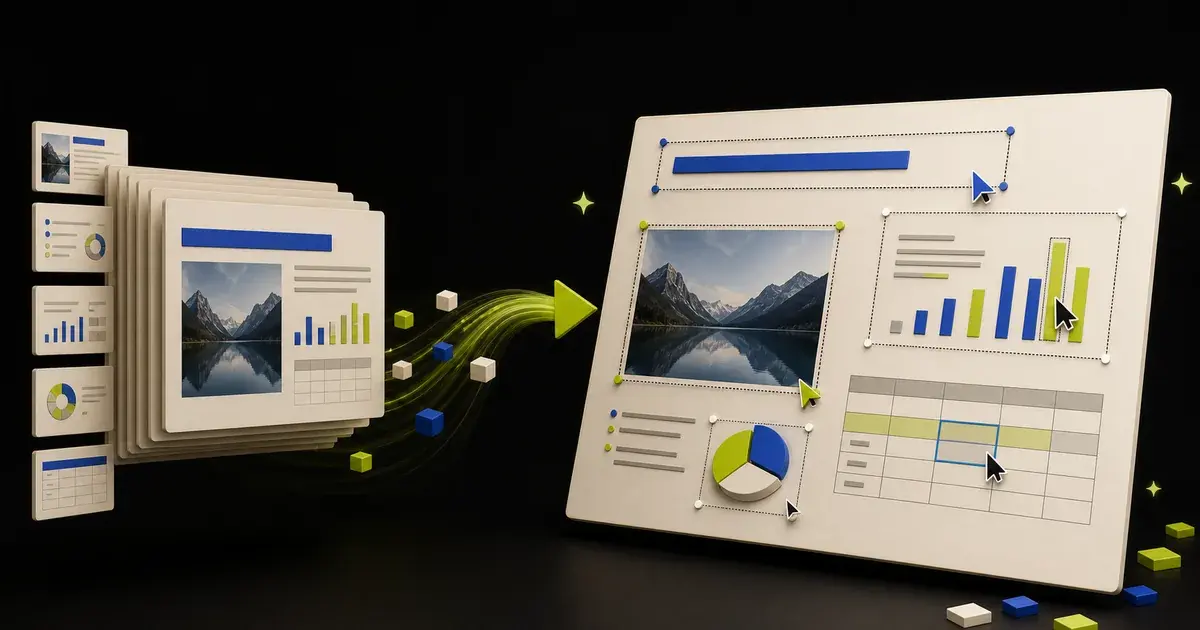
Yes, AI can edit an existing PowerPoint. It can rewrite slide text, add or remove content, reorganize a deck, change visuals, and help refine layouts. But “edit an existing PowerPoint” does not mean the same thing in every product. One tool may extract your text and generate a replacement deck; another may change objects inside PowerPoint; a third may import supported PPTX elements into a browser editor and export a revised file.
The right question is not only whether a tool accepts .pptx. Ask what becomes editable, what stays connected to the original structure, and what survives the trip back to PowerPoint.
The short answer by task
| What you want to do | Can AI help? | What to verify |
|---|---|---|
| Rewrite a title or paragraph | Usually | Facts, terminology, tone, and text overflow |
| Summarize or reorganize slides | Often | Missing context, changed emphasis, and slide order |
| Add a new slide | Often | Whether it follows the existing story and design |
| Redesign an old slide | Product-dependent | Editability, brand details, and preserved data |
| Update charts or tables | Product-dependent | Data accuracy and whether the object stays editable |
| Preserve every PowerPoint effect | Cannot be assumed | Fonts, animations, transitions, media, and unsupported objects |
| Export a usable PPTX | Product-dependent | Reopen, edit, present, save, and reopen again |
If you are ready to work through the process, use our step-by-step guide to editing PowerPoint with AI. The rest of this article explains what different products may be doing behind the word “edit.”
Four different meanings of PowerPoint support
Product pages often use the same verbs—upload, import, edit, redesign, export—for technically different workflows. Separate them before you compare tools.
1. Reading the deck as source material
The AI reads text or other content from the PPTX and uses it as input for a new presentation. This can be useful when you want a fresh structure or visual direction. It is less suitable when the original layouts and object relationships are part of the work you need to keep.
Gamma provides a clear official example of this distinction. Its PowerPoint import documentation says that a plain import brings slide text into Gamma cards, while styles and layouts are not imported. Its AI import option can instead restyle or transform the content.
That is a valid generation workflow. It should not be confused with preserving the original slide as an editable slide.
2. Editing through an AI assistant inside PowerPoint
An AI assistant can operate within the application where the deck already lives. This reduces the need to move the file into a separate presentation format.
Microsoft’s Copilot documentation describes editing existing content, adding slides, updating structure, and working with the context of a presentation inside PowerPoint. ChatGPT for PowerPoint similarly describes creating new slides, revising an existing deck, restructuring content, and polishing slides within PowerPoint.
An in-application workflow can still have limits. “Inside PowerPoint” does not mean that every command, object type, or design decision will be handled correctly. The output still needs review.
3. Editing in a browser workspace
Some products accept a PPTX, convert supported content into their own editable representation, and provide a web-based slide editor.
SlideSpeak’s official editor page advertises a browser workflow for uploading a PPTX, editing text and images, using AI to redesign slides, and downloading the result as PPTX or PDF. A browser editor can be convenient when you do not want an add-in, but its import and export fidelity must be tested with your actual deck.
4. Creating or refining native presentation files
Some tools are designed to work with PowerPoint or Google Slides as the ongoing delivery format. Plus AI’s official product page says it accepts PowerPoint files as input, supports refine and remix operations, and creates native PPTX or Google Slides presentations inside those applications.
The relevant question is still specific: which original objects remain editable, and what happens when the deck contains features outside the tool’s supported scope?
Official documentation can establish the workflow a vendor advertises. It is not a substitute for testing import quality, edit behavior, or export fidelity on your own files.
Why PPTX editing is more complex than changing visible text
A PowerPoint presentation is not a single canvas image. A .pptx file is an Open XML package containing related parts for slides, slide masters, layouts, themes, notes, shapes, pictures, tables, charts, media, transitions, animations, and other features.
Microsoft’s PresentationML documentation describes this structure and the relationships between slides, layouts, masters, and themes. That complexity explains why a tool may preserve common text and images while changing a custom font, grouped object, chart, animation, or master-driven layout.
The phrase “supports PPTX” is therefore too broad to answer a serious editing question. Support needs to be evaluated at the level of the objects and behaviors you rely on.
What AI can change in an existing PowerPoint
Capabilities vary by tool, plan, platform, and file, but the following editing jobs are common enough to evaluate directly.
Text and message
AI can help:
- shorten dense paragraphs;
- turn prose into scannable points;
- rewrite a title as a conclusion;
- adjust tone for a specific audience;
- translate or simplify language;
- identify repetition or missing context.
These are not risk-free changes. A rewrite can alter a number, remove a qualification, or create a claim that the source did not support. Protect fixed facts in the instruction and compare the result with the approved source.
Story and structure
AI can suggest:
- a different slide order;
- a clearer opening and conclusion;
- missing transition slides;
- sections that should be combined or separated;
- content that belongs in an appendix.
Structural advice is useful when the deck’s problem is narrative rather than design. It should be judged against the audience and decision the presentation must support.
Layout and visual hierarchy
Depending on the editor, AI may help adjust:
- spacing and alignment;
- title hierarchy;
- image placement;
- the balance of text and visuals;
- chart or table emphasis;
- color and typography choices.
Visual changes deserve a before-and-after comparison. A slide can become more attractive while becoming less accurate, less accessible, or less aligned with the presentation’s established design.
Images, charts, and tables
Some AI editors can replace or generate images, insert charts or tables, or help revise existing objects. The critical distinction is whether the result is a real editable object or a flattened visual that only looks like one.
If the data will change later, editability matters. Select the chart in the exported PPTX, inspect its data, change a value, and confirm that the visual updates as expected.
What may not be preserved
No general-purpose AI editing workflow should be assumed to preserve every PowerPoint feature. Pay particular attention to:
- custom fonts and font-embedding restrictions;
- Slide Master and custom-layout relationships;
- SmartArt and uncommon chart types;
- complex groups, masks, crops, shadows, and blend effects;
- animations, motion paths, and slide transitions;
- embedded video, audio, and external links;
- macros, add-in objects, and linked workbooks;
- speaker notes, comments, accessibility metadata, and hidden slides;
- precise line wrapping across different PowerPoint versions or operating systems.
A tool may support some items in this list and not others. Even supported elements can change when a font is unavailable or an application interprets the PPTX differently.
How to tell whether the AI is really editing your deck
Run a small round-trip test before trusting a production presentation.
Build a representative test file
Use a copy containing the elements you need in real work: branded text, images, a table, a chart, a grouped shape, a custom layout, and any advanced feature that matters.
Inspect the imported version
Before asking AI to change anything, compare the imported deck with the source. Confirm slide count, text, object placement, fonts, colors, images, and data visuals.
Request one constrained edit
For example:
Rewrite only the selected title as a concise conclusion. Keep every number, object, color, and layout position unchanged.
This tests whether the tool respects scope. It also makes unintended changes easier to spot.
Make a manual edit
Select and change a text box, image, chart, or table in the workspace. If the visible slide is a flat image, it may not support the continuing workflow you need.
Export and reopen the PPTX
Open the result in PowerPoint. Select objects, edit text, inspect chart data, run the presentation, save it, close it, and reopen it. Compare the final file with the source and the editor preview.
This process measures the workflow that matters: import, edit, export, and continued use.
Questions to ask before choosing a product
Use the following checklist when a tool says it can edit PowerPoint with AI:
- Does it import slide objects or only extract text?
- Does it preserve supported layouts, or rebuild the deck in a new format?
- Can I select and change individual elements?
- Can AI act on one element, one slide, or the entire deck?
- Can I correct the result manually?
- Does it export PPTX?
- Which exported objects remain editable?
- What happens to fonts, charts, tables, and advanced effects?
- What are the published privacy and retention terms for uploaded files?
- Can I test with my own representative deck before committing?
Our comparison of an AI PowerPoint editor vs. an AI presentation generator can help you decide which workflow category fits the job.
How Yrkie works with an existing PowerPoint
Yrkie is designed around two first-class starting points. Inventor mode creates a new presentation from an idea and source material. Copyist mode begins with an existing PPTX so the deck can continue as working material.
In Copyist mode, supported text, images, charts, tables, formulas, icons, and layout elements become part of an editable canvas. You can refine selected content, make manual changes, present the result, and export a PPTX.
Yrkie uses a source-backed workflow for supported structures, but some PowerPoint fonts, animations, effects, and objects fall outside that supported scope. The same import inspection and round-trip test described above still applies.
If your goal is to improve the deck you already have instead of replacing it, upload an existing deck to Yrkie and begin with one representative edit.
Frequently asked questions
Can AI edit a PowerPoint without Microsoft Office?
Some browser-based products advertise PPTX upload, editing, and export without requiring the desktop PowerPoint application. You should still open the exported file in the application used by the final recipient before delivery.
Can AI change just the wording and keep the design?
Some tools support selected-text or selected-element edits. State the exact target and tell the AI what must remain unchanged. Then compare the result with the source, because a constrained prompt guides the change but does not prove fidelity.
Can AI redesign an existing presentation?
Yes, several workflows can restyle or rebuild slides. Decide first whether you want a new visual interpretation or edits to the existing slide structure. Those are different jobs and can lead to different levels of editability.
Will the exported PowerPoint stay editable?
It depends on the product and object type. A file may contain editable text alongside flattened visuals. Test the objects you expect to revise after export.
Is accepting PPTX the same as preserving PPTX?
No. A product can accept a PowerPoint as source material while importing only its text, or it can import supported slide objects into an editable environment. Read the product documentation and verify the behavior with your own deck.