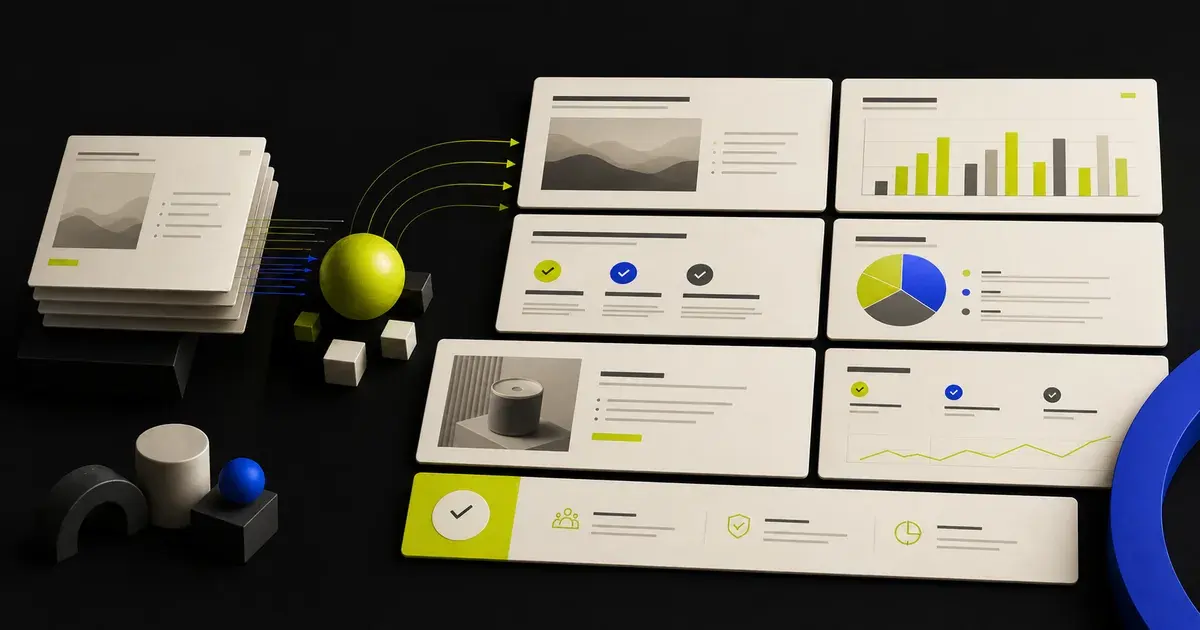
The safest way to update a sales deck with AI is to begin with an approved master, define the buyer and sales-stage decision, supply current source material, and change only the slides that need new facts or context. AI should help classify, rewrite, and restructure the deck—not invent account pain, customer proof, pricing, integrations, or product capabilities. Finish by validating the message and reopening the exported PPTX.
A sales deck update is a decision update
A current logo and a new screenshot do not make a sales deck relevant. The deck should help a specific group of people make a specific next decision.
Before editing, write down:
- Audience: Who will see the deck, and what roles do they represent?
- Stage: Discovery, first presentation, technical validation, business case, procurement, or expansion?
- Decision: What should the audience be able to decide after this presentation?
- Next action: What concrete step should follow?
- Evidence: Which claims, customer examples, and data are approved?
- Constraints: Which legal, brand, pricing, or product statements cannot be changed?
If those fields are missing, AI will optimize wording without knowing what the deck is supposed to accomplish.
The full technical workflow is covered in how to edit an existing PowerPoint with AI. This guide focuses on the sales decisions that should drive those edits.
Step 1: Protect the master and define the version
Keep an untouched master deck. Create a working copy with a name that identifies the audience and date:
Master_SalesDeck_2026-07-15.pptx
Acme_DiscoveryDeck_2026-07-15_WORKING.pptx
Record four kinds of version separately:
| Version dimension | Example | Why it matters |
|---|---|---|
| Product | July 2026 release | Screenshots and capabilities change |
| Commercial | Current pricing and packaging | Old terms can create serious confusion |
| Segment | Mid-market operations | Problems, proof, and language differ |
| Account | Acme discovery | Personalization must be traceable to research |
Do not let account-specific edits flow back into the master automatically. Promote a change to the master only after the appropriate owner approves it.
Step 2: Build an approved source pack
Give the AI editor a limited, current set of material:
- product release notes;
- approved feature descriptions;
- current screenshots;
- pricing and packaging;
- security and compliance documentation;
- implementation guidance;
- approved case studies and quotations;
- discovery notes;
- account research from reliable first-party sources;
- the current call-to-action and sales process.
Create a source ledger:
| Content type | Approved source | As-of date | Owner | Allowed use |
|---|---|---|---|---|
| Product capability | Product documentation | YYYY-MM-DD | Product marketing | Core deck |
| Pricing | Approved pricing sheet | YYYY-MM-DD | Revenue operations | Commercial slide |
| Customer result | Signed case study | YYYY-MM-DD | Customer marketing | Proof slide |
| Account priority | Discovery notes | YYYY-MM-DD | Account owner | Account version only |
When a field is uncertain, label it “unknown” or “requires approval.” Never use AI to complete an evidence gap with a plausible sentence.
Step 3: Run a staleness audit before personalizing
Review every slide for content that ages quickly:
Product risk
- retired features;
- renamed features;
- outdated screenshots;
- unsupported integration claims;
- roadmap items presented as available;
- old implementation steps.
Commercial risk
- obsolete pricing;
- expired offers;
- changed packaging;
- old contract language;
- unsupported service-level statements.
Evidence risk
- results without an as-of date;
- customer logos without permission;
- quotations that were edited beyond approval;
- market statistics with no original source;
- charts whose underlying data has changed.
Buyer-fit risk
- a generic problem statement;
- an irrelevant industry example;
- features unrelated to the discovery call;
- a call-to-action that does not match the current stage.
Ask AI to produce findings, not replacements:
Audit this sales deck against the approved source pack. For every slide, classify each claim as current, outdated, unsupported, account-specific, or requiring owner review. Cite the supplied source filename and date. Do not rewrite any slide yet.This separates factual maintenance from persuasion.
Step 4: Classify every slide by change type
Use five statuses:
- Keep: approved and relevant as written.
- Update: right slide, stale fact or visual.
- Personalize: approved structure, buyer-specific context required.
- Move to appendix: useful for objections or technical review, not the current conversation.
- Retire: obsolete, unsupported, or no longer useful.
A simple matrix keeps the work controlled:
| Slide | Status | Reason | Source needed | Approver |
|---|---|---|---|---|
| Product overview | Update | Screenshot is outdated | Current product capture | Product marketing |
| Customer story | Personalize | Wrong segment example | Approved segment case | Customer marketing |
| Security | Appendix | Too detailed for discovery | Current security brief | Security |
| Pricing | Keep | Current and approved | Pricing sheet | Revenue operations |
This matrix is also a useful change log when someone asks why a slide differs from the master.
Step 5: Map the deck to the buyer's questions
The order should follow the conversation, not the order in which your company built its features.
| Buyer question | Slide job | Avoid |
|---|---|---|
| Why should we change anything? | Establish the current business problem | Generic trend statistics |
| Why is this relevant to us? | Connect approved discovery context to the problem | Pretending to know unconfirmed pain |
| What outcome is possible? | Define a credible target state | Guaranteed results |
| How does the product help? | Map capabilities to the workflow | Feature inventory |
| Can we trust the approach? | Present approved evidence and constraints | Invented logos or metrics |
| What will adoption require? | Explain implementation, owners, and dependencies | “Effortless” claims |
| What does it cost? | Present approved commercial structure | Generated pricing |
| What should happen next? | Make the next action specific | Vague “get in touch” close |
Read only the slide titles. If they do not form a logical answer sequence, fix the narrative before polishing the layouts.
Step 6: Personalize with evidence, not imagination
Buyer personalization has three safe levels.
Level 1: Confirmed context
Use facts stated in discovery notes, the buyer's official materials, or other approved sources. Attribute them accurately.
Level 2: Relevant hypothesis
You may frame a hypothesis as a question:
Based on the workflow discussed, should reducing manual handoffs be part of the evaluation criteria?
Do not rewrite the hypothesis as a confirmed problem.
Level 3: Unknown
Leave an explicit placeholder for the seller to resolve:
Confirm current approval workflow before presenting.
Use a grounded prompt:
Personalize slides 3 through 6 for the account using only the discovery notes and approved product brief.

For every proposed edit:
1. cite the source;
2. label confirmed facts, hypotheses, and unknowns;
3. preserve the approved product and legal language;
4. do not infer priorities, budgets, competitors, or technical requirements;
5. return a review table before changing the slides.
Microsoft's guidance on validating Copilot output before acting on it makes the same core distinction: polished output still needs Source, Verified, Context, and Resilient checks. The account owner remains responsible for the final claims.
Step 7: Rewrite slide titles as decisions or conclusions
Label titles such as “Our Platform,” “Benefits,” and “Customer Story” describe topics but do not advance the conversation.
Ask AI to propose conclusion titles constrained by the evidence:
Write five title options for this slide. Each title must express the one conclusion supported by the slide, use plain language, contain no new fact, and remain under 12 words. If the evidence does not support a conclusion, state that before proposing a descriptive title.Examples of the transformation:
| Topic label | More useful direction |
|---|---|
| The Problem | Manual handoffs make approval status difficult to see |
| Product Overview | One workspace connects the brief, slides, and revisions |
| Customer Story | The approved case shows how the workflow was adopted |
| Next Steps | Confirm the technical review owner and evaluation date |
These are structural examples, not claims to paste into a real deck without evidence.
Step 8: Update the high-change slides carefully
Cover and agenda
Use the buyer's correct name, meeting purpose, date, and participants. Do not add logos unless usage is appropriate. The agenda should reflect the stage; a discovery presentation and a procurement review need different paths.
Problem and outcome
Connect the problem to confirmed context. Separate the current state, consequence, and desired outcome. Avoid manufactured urgency.
Product workflow
Show what the user provides, what the product does, where human judgment remains, and what output or decision follows. Use current screenshots and language from approved product documentation.
Capability slides
Prioritize only the capabilities relevant to the buyer's evaluation criteria. Move the rest to an appendix. AI can help consolidate duplicate feature slides, but product owners should confirm the resulting statements.
Proof slides
Use only approved customer evidence. Keep context around results: audience, use case, measurement period, and relevant limitations. Do not generalize one customer's outcome into a guarantee.
Implementation and security
State owners, phases, dependencies, and open questions. Link detailed security material rather than compressing nuanced requirements into an overconfident badge slide.
Pricing and next step
Pricing must come from the current approved source. The final slide should name the next action, owner, and intended timing when those details are confirmed.
Step 9: Make local edits instead of regenerating the deck
Use deck-level AI to diagnose consistency, but make most changes at the slide or element level:
- rewrite one title without replacing the chart;
- update one screenshot without rebuilding the layout;
- shorten a paragraph while preserving approved terminology;
- add one buyer-specific slide instead of changing the master story;
- move technical depth into an appendix;
- replace an outdated example with an approved one.
This is the main distinction between an editor workflow and a blank-slate generator. The guide to AI PowerPoint editors versus presentation generators explains when each model is appropriate.
For reusable instructions, adapt the AI prompt library for editing PowerPoint to your product, approval rules, and sales process.
Step 10: Manage master, segment, and account versions
Use a simple content hierarchy:
- Master deck: approved company story and current product truth.
- Segment deck: approved industry or role-specific narrative.
- Account deck: confirmed discovery context and meeting-specific choices.
- Appendix library: security, implementation, architecture, pricing detail, and approved proof.
Each account version should record:
- source master and date;
- slides changed;
- reason for each change;
- source material used;
- approver;
- expiry or review date for time-sensitive content.
After a meeting, do not automatically merge account language into the segment deck. First decide whether it represents a reusable pattern or one buyer's context.
Step 11: Run a sales and PPTX quality review
Message review
- The deck is aligned to the current sales stage.
- Each core slide answers a buyer question.
- Titles form a coherent story.
- The next action is concrete.
Truth review
- Product, pricing, security, and implementation claims are current.
- Customer evidence is approved and properly scoped.
- Confirmed facts, hypotheses, and unknowns are distinct.
- Every AI-assisted statement has an accountable reviewer.
Visual review
- Current screenshots are legible.
- The buyer-specific content fits without overflow.
- Charts retain their labels and context.
- Appendix slides use the same visual system as the core deck.
PowerPoint review
- The exported PPTX opens without a repair warning.
- Expected text, image, chart, table, and layout elements remain editable.
- Fonts, wrapping, crops, links, notes, and media have been checked.
- The file works in the PowerPoint environment used by the sales team.
Use the deeper guide to preserving PowerPoint formatting with AI when the deck includes custom fonts, complex charts, media, or other high-risk structures.
Measure whether the update helped the sales process
Do not judge success from aesthetics alone. Define the purpose before the meeting, then record observable outcomes such as:
- whether the intended next meeting was scheduled;
- which questions or objections emerged;
- which slides were skipped or required clarification;
- which factual updates were requested;
- whether the buyer shared the deck with another stakeholder;
- which account-specific slides should be retained, revised, or retired.
These observations can improve the next version. They do not prove that one slide caused an outcome, so avoid treating correlation as attribution.
Frequently asked questions
Can AI update an existing sales deck?
Yes. An AI presentation editor can help audit slide content, rewrite titles and copy, restructure selected slides, add new material, and refine supported elements in an existing deck. The exact import, editing, and export support varies by product, so test the real PPTX workflow before standardizing it.
How much of a sales deck should be personalized?
Personalize what changes the buyer's understanding or next decision: confirmed context, relevant workflow, approved proof, implementation questions, and the next action. Keep approved company, product, legal, and commercial language stable unless its owner authorizes a change.
How do I stop AI from inventing buyer pain?
Provide discovery notes and approved sources, require citations for every proposed edit, label hypotheses and unknowns, and ask for a review table before changing slides. The account owner should reject any statement that cannot be traced to evidence.
Should I generate a new deck for every prospect?
Not necessarily. A controlled master-to-segment-to-account system usually preserves more approved work and makes changes easier to review. Generate a new deck when the audience, use case, or narrative is genuinely different—not merely because AI can.
How do I keep the updated deck editable?
Use a workflow that preserves supported PPTX structures instead of flattening the presentation. Export the actual PPTX and test the elements the sales team expects to change later.
Update the presentation, not just the wording
Yrkie is designed to treat an existing PowerPoint as working material. Its Copyist workflow brings supported PPTX structures into an editable canvas so the seller can revise focused elements and return to a PowerPoint export workflow. Explore the existing-deck workflow, keep every claim grounded, and make each version serve a real buyer decision.