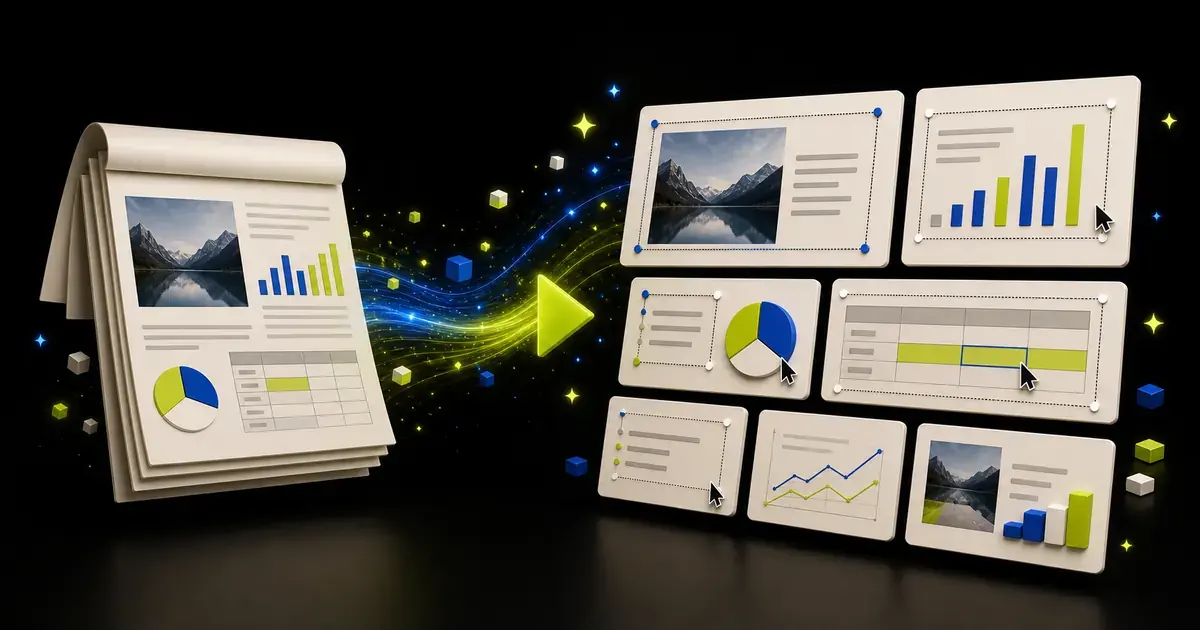
To turn a PDF into a useful PowerPoint with AI, treat the PDF as evidence rather than as a set of pages to copy. Define the audience, identify the sections and facts that matter, approve a slide outline, generate a concise deck, verify every claim against the PDF, and test the exported PPTX in PowerPoint.
That workflow is different from simple PDF-to-PPT conversion. A converter tries to reproduce PDF pages as slides. An AI presentation workflow tries to create a new story from the document's meaning.
If that is the result you need, open Yrkie's PDF to PowerPoint AI tool. It uses the PDF as source material for a new editable presentation draft; it does not claim to preserve the original page layout.
Decide whether you need conversion or presentation creation
PDF is a delivery format. It may contain text, charts, images, tables, scanned pages, appendices, and carefully positioned elements. Your goal determines the right workflow.
Choose layout conversion when:
- each PDF page should become a visually similar slide;
- the original page design matters more than presentation flow;
- you need archival reproduction;
- you accept that some content may be flattened or difficult to edit.
Choose AI presentation creation when:
- the PDF is too dense to present directly;
- the audience needs a shorter argument;
- report sections must become audience takeaways;
- charts or findings need new explanation;
- the final result should function as a live presentation.
If the PDF was exported from an existing PowerPoint and you still have the original PPTX, use the PPTX. It contains more presentation structure and may provide a better editing starting point. Read how to edit an existing PowerPoint with AI for that workflow.
Inspect the PDF before giving it to AI
Not every PDF gives a model the same quality of source material.
Check whether the text is selectable
Select and copy a paragraph. If you receive clean text, the file is likely easier to parse. If selection captures random fragments or nothing at all, the PDF may be scanned or have an unusual text layer.
For a scanned document, run approved OCR first and compare the extracted text with the original. Pay special attention to:
- decimal points and negative signs;
- footnotes and superscripts;
- multi-column reading order;
- tables;
- names and acronyms;
- page headers that may be repeated as body text.
Identify the information architecture
List the PDF's major sections, exhibits, and appendices. Mark which ones matter to the presentation's audience.
A 70-page report may support a 10-slide presentation, but page count does not determine slide count. One report page may contain three distinct findings, while a ten-page appendix may support only one summary statement.
Record the source location of important evidence
For every important claim, note the page, section, table, or figure. This makes review faster and supports citations.
Use a source map like this:
| Evidence | PDF location | Intended slide | Review risk |
|---|---|---|---|
| Current market size | Page 12, Figure 3 | Market context | Definition and year |
| Customer concern | Page 27, interviews | Problem | Sample limitation |
| Recommended action | Page 44 | Recommendation | Author interpretation |
Write a presentation brief for the PDF
Do not ask AI to "summarize this PDF as slides" without context. Supply:
- Audience: who will see the deck;
- Decision: what they should understand or approve;
- Setting: live presentation or asynchronous reading;
- Length: a realistic slide range;
- Required evidence: figures, findings, or sections that must appear;
- Excluded material: appendices or background that should not appear;
- Citation rule: how source pages should be recorded;
- Constraint: no facts outside the PDF unless explicitly supplied.
Example:
Create an outline for a 12-slide executive presentation based only on the attached PDF. The audience is a leadership team deciding whether to fund the recommended initiative. Use pages 8-35 as the primary evidence and pages 40-48 for risks. Cite the source page for every number. Put methodological detail in an appendix. Flag missing information instead of inferring it.
Turn the PDF structure into a presentation story
Reports and presentations organize information differently.
A report often follows the process of research: background, method, evidence, analysis, and conclusion. A presentation should follow the audience's decision path.
For an executive audience, that path may be:
- what changed;
- why it matters now;
- what the evidence shows;
- what options exist;
- what is recommended;
- what it requires;
- what decision is needed.
For a teaching audience, it may be concept, example, misconception, practice, and recap.
Ask AI to propose the story, but require every slide to list its supporting PDF location. Review the sequence before generating design. The source-material presentation workflow provides a full outline and evidence process.
Convert sections into slide takeaways
Avoid using report section names as slide titles.
Weak title:
Survey Results
Stronger title:
Response time is the main barrier for enterprise buyers
The stronger title states the conclusion. It is valid only if the survey and its scope support it.
For each slide, ask:
- What should the audience understand?
- Which PDF evidence proves it?
- What qualification must stay visible?
- What visual form best communicates the relationship?
- What belongs in notes or an appendix?
Do not let brevity remove necessary scope. "62% of surveyed customers" should not become "62% of customers" if the PDF describes a limited sample.
Rebuild charts instead of copying unclear screenshots
When the PDF contains a chart, decide whether to reuse the image or rebuild the chart from verified data.
Reuse the image when:
- the exact visual is approved;
- the source data is unavailable;
- the labels remain readable in presentation size;
- editability is not required.
Rebuild the chart when:
- the underlying data is available and verified;
- the original is too dense;
- the deck needs a different emphasis;
- the chart must remain editable.
Never estimate data from bar heights or plotted points when exact values are required. If the PDF does not expose the source values, label the visual as an image from the report and preserve its citation.
Handle tables, footnotes, and appendices deliberately
Tables
Do not place a full report table on a slide unless the audience needs exact lookup. Extract the decision-relevant rows or columns, preserve labels and units, and link the simplified view to the complete source in an appendix.
Footnotes
Footnotes often contain the definition that keeps a headline accurate. Preserve reporting periods, sample sizes, exclusions, currency, and methodology where they affect interpretation.
Appendices
Use the appendix for detailed methodology, source tables, secondary findings, definitions, and backup analysis. The main deck should still make sense without presenting every appendix slide.
Review the AI draft against the PDF
Run a reconciliation pass before judging the design.
For every slide, verify:
- title conclusion;
- numbers and units;
- time periods;
- named entities;
- chart categories and legends;
- causal language;
- quotations;
- sample and method limitations;
- PDF page reference.
Use three labels during review:
- Supported: directly backed by the PDF.
- Interpretation: reasonable but requires presenter ownership.
- Unsupported: absent, contradicted, or too broad.
Delete or repair unsupported content. Do not keep it because the wording sounds plausible.
Create the PowerPoint in Yrkie
In Yrkie, start in Inventor mode and add the PDF as source material with a clear brief. Review and edit the outline before generating slides. After generation, refine supported text, images, charts, tables, and layout elements in the canvas.
The PDF supplies context; it is not a promise that every PDF page, font, graphic, or embedded object will become an identical editable PowerPoint element. If preservation of an existing presentation is the goal, use the original PPTX in Copyist mode instead.
Export the final result as a new PPTX. Reopen it in PowerPoint, test the elements you need to edit, and compare every factual slide with the PDF.
Create a presentation from your source material after preparing the brief and source map.
Frequently asked questions
Can AI convert any PDF into PowerPoint?
AI can use many PDFs as source material, but extraction quality depends on the file. Scanned pages, unusual text layers, complex tables, and embedded graphics may require OCR or manual review.
Will the PowerPoint look exactly like the PDF?
Not necessarily. An AI-generated presentation usually reorganizes the content for presentation. If visual reproduction is the goal, use a layout conversion workflow and test editability separately.
Can AI keep citations from the PDF?
It can include citations when instructed, but you should verify every page reference. Require source locations in the outline before slide generation.
Should every PDF page become one slide?
No. PDF pages and presentation slides have different jobs. Build slides around audience takeaways, not the page boundaries of the source document.
Can I edit the resulting PPTX?
That depends on the presentation product and the elements it exports. Open the file in PowerPoint and test text, images, charts, tables, and other objects that matter to your workflow.